Blog (Web logs)


Blogs are web logs (or online journal entries) that others can see – they are displayed so that the most recent entry is on the top and the oldest entry is on the bottom. You will be able to read important news and updates!


How do I get to the blog?
  1. Click on the Menu tab.
  2. The Menu tab will expand to display selections.
  3. Click on the Blog page's button [ Example ]. Since Blog folders can be named anything, whatever it was called the button's icon will still look the same.
  4. The Blog's content will then load. [ Example ]
[Back]


Setting the Time Zone
  1. Set your blog's Time Zone so that timestamps are accurate.
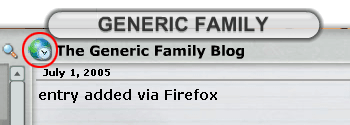
  2. Click on the Time Zone icon next to the blog's title. [ Example ]
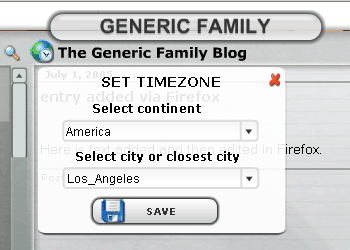
  3. A white dialog box will be displayed.
  4. Select your continent and city or closest city then click on SAVE. [ Example ]
[Back]


Adding a new blog entry
  1. Click on the New Entry button at the Top-Right corner of the page. [ Example ]
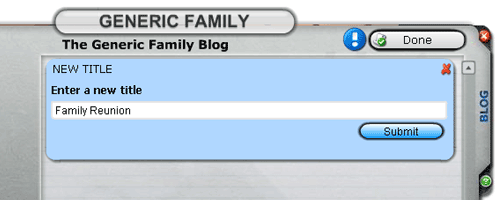
  2. Enter the title for the new entry and click on Submit. [ Example ]
  3. Once the new entry has been added, click on the Add a New Text icon.
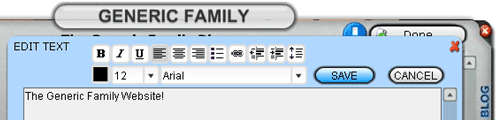
  4. Type in your new entry, apply your settings and click on SAVE. [ Example ]
[Back]


Add images to your blog entry
  1. Clicking on the Add a New Image icon.
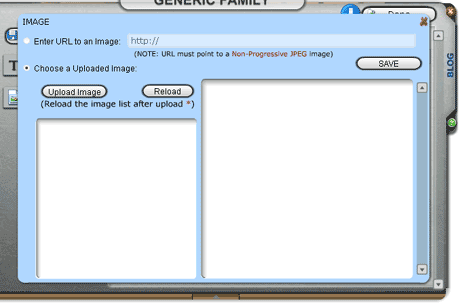
  2. The Add a New Image window will load. [ Example ]
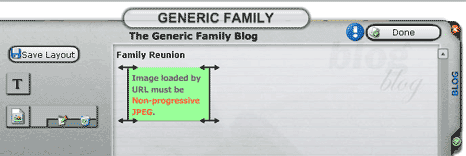
  3. Images must be a Non-Progressive JPEG.
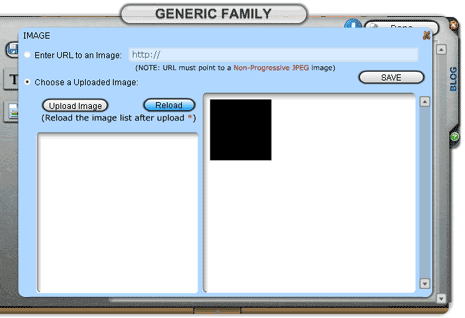
  4. Click on the Reload button after the image is Uploaded Successfully. [ Example ]
  5. If the image being uploaded is not a Non-Progressive JPEG, the system will put in a place marker for the image that it is not compatible. [ Example ]
  6. SAVE button to return to the blog. [ Example ]
[Back]


Managing Comments in your blog
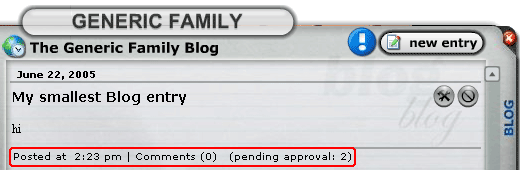
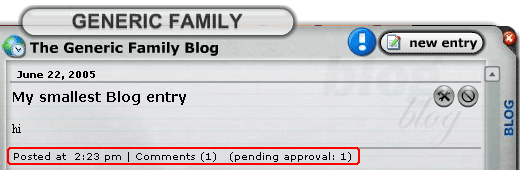
  1. If a visitor has posted a comment to your blog entry, a pending approval link will appear at the Bottom-right corner of your blog entry.
  2. Click on the pending approval link. [ Example ]
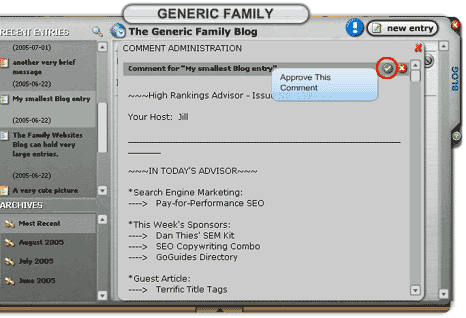
  3. The Comment Administration will load on the screen.
  4. To Approve a visitor's comment, click on the green check mark at the Top-right corner of the Comment Administration. [ Example ]
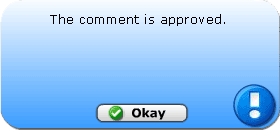
  5. You will receive a confirmation that The comment is approved. [ Example ] Click on Okay.
  6. Close the Comment Administration by clicking on the red "X" at the Top-right corner of the window.
  7. The comment will be listed in your blog entry. [ Example ]
  8. Click on the red "X" at the Top-right corner of the Blog to close the window.
  9. You will see the number of comments for the blog entry. [ Example ]
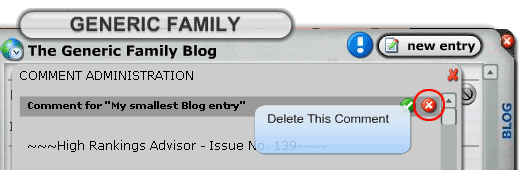
  10. If you do not approve of a pending comment, click on the Delete This Comment icon. [ Example ]
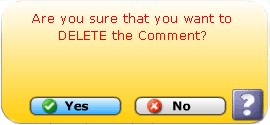
  11. A confirmation window will appear on your screen. [ Example ]
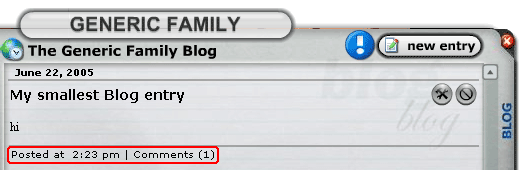
  12. Now there should be no pending approval comments for your blog entry. [ Example ]
[Back]


Editing/Deleting an existing blog entry
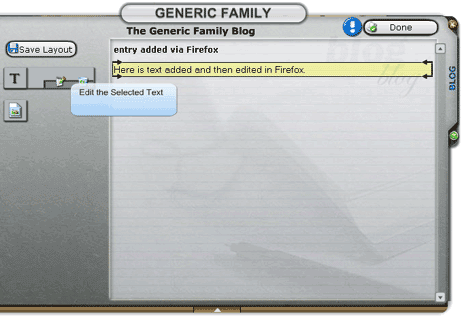
  1. Click on the edit entry icon at the Upper-right hand corner of the blog entry you wish to modify. [ Example ] You will have the ability to edit the title, text, image and the entry itself.
  2. Click on the blog entry to select it. [ Example ]
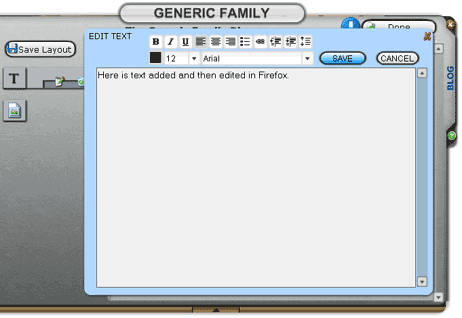
  3. Make your modifications and click on SAVE. [ Example ]
  4. Always confirm deletion of your blog entry.
[Back]


Blog button [
Back]


Blog content [
Back]


Set Time Zone [
Back]


Select location for Time Zone [
Back]


New Entry button [
Back]


Add a new entry [
Back]


Save new entry [
Back]


Add images to your blog [
Back]


Reload Image window [
Back]


Image not compatible [
Back]


Save Image [
Back]


Pending approval comments [
Back]


Approve This Comment [
Back]


Approval confirmation [
Back]


Pending Comment Approved [
Back]


Delete This Comment [
Back]


Confirm Deletion of Comment [
Back]


Blog vistor comments [
Back]


Edit/Delete a blog entry [
Back]


Edit the Selected Text [
Back]


Edit the Selected Text [
Back]


Back - Return to top